
Setting Up Claude Code with a Local LLM (free)
This is a short article on how to set up an LLM on your machine and connecting it to your Claude Code harness and executing tasks in your CLI for free. I had no prior knowledge on how to do this, and relied heavily on other articles online but that had mixed information.
My personal setup is an M4 Pro Macbook with 48GB of memory. Based on Google searches, I should be able to run the Qwen2.5-Coder-32B or Qwen3.5-9B. What I ended up running was a version of qwen3-coder:30b.
What should I install?
I initially installed several things: OpenClaw, Ollama and LMStudio. I ended up keeping only Ollama because it performed the fastest for me.
Ollama seems to be like a server to run your LLMs (Large language models). You can either run them online in the cloud (which I believe you need to pay for) or you can download them locally on your machine and run them for free.
Follow the installation instructions on ollama.com and you'll have the CLI available to you in your terminal.
Which LLM do I download?
It's important to do a bit of research on which model you want to try out: you may want to focus on video/audio creation/manipulation or chatting or coding. I was looking for a coding-specific LLM so I settled on qwen (checkout out qwen.ai for more information).
The size of the LLM is important too. Have a look at the numbers in the LLM's name: 'qwen3-ccoder:30b' or 'gemma4:26b' for example. The "
Since I went with qwen3-coder:30b, and confirming with an online search, I should be able to run this on my laptop.

Memory usage when the model is running
Using Ollama to Pull the LLM
Now that you've decided on the LLM to pull down, if it's listed in the Ollama website, you should be able to pull it.
In the command line, you would do this:
// ollama pull <model name>

ollama pull qwen3-coder:30b
That will download the model to your machine. The one above is about 18Gb so keep that in mind as you're trying out different models.
Now you can list the models to ensure that Ollama pulled it:
// ollama list
NAME                       ID              SIZE      MODIFIED
qwen3-coder:30b            3d92bf9a9a66    18 GB     4 days ago
qwen2.5-coder:7b           dae161e27b0e    4.7 GB    4 days ago
Creating Your Configured Model
This isn't a necessary step if your desired configuration is simple, but I went ahead and created a Modelfile with the following content:
FROM qwen3-coder:30b
PARAMETER num_ctx 65536
The num_ctx is recommended to be set at 65536 when running this model with Claude Code.
So I then ran this command to generate a configured version of the LLM:
ollama create -f Modelfile my-modelYou can run ollama list again to make sure it go created. This is the model I will be referring to when launching claude with ollama.
// ollama list
NAME                       ID              SIZE      MODIFIED
my-model:latest           3d92bf9a9a66    18 GB     3 seconds ago
qwen3-coder:30b           06c1097efce0    18 GB     4 days ago
Claude Code Environment Setup
Before launching Claude Code via Ollama, there are a few environment variables to set:
export ANTHROPIC_DEFAULT_HAIKU_MODEL="my-model:latest"
export ANTHROPIC_DEFAULT_SONNET_MODEL="my-model:latest"
export ANTHROPIC_DEFAULT_OPUS_MODEL="my-model:latest"

export ANTHROPIC_API_KEY=""
export ANTHROPIC_AUTH_TOKEN=ollama
export ANTHROPIC_BASE_URL=http://127.0.0.1:1234
export DISABLE_TELEMETRY=1
You can set those in the terminal window you plan to run your Claude Code CLI.
Thanks to https://www.rushis.com/fixing-the-model-may-not-exist-error-when-using-ollama-with-claude-code/ which was instrumental in getting this to work for me.
Launching your Setup
Now for the fun part: you're ready to launch Claude Code. Run this in the same terminal:
ollama launch claude --model my-model:latest
You should see the Claude code harness with my-model displayed as the one in use.
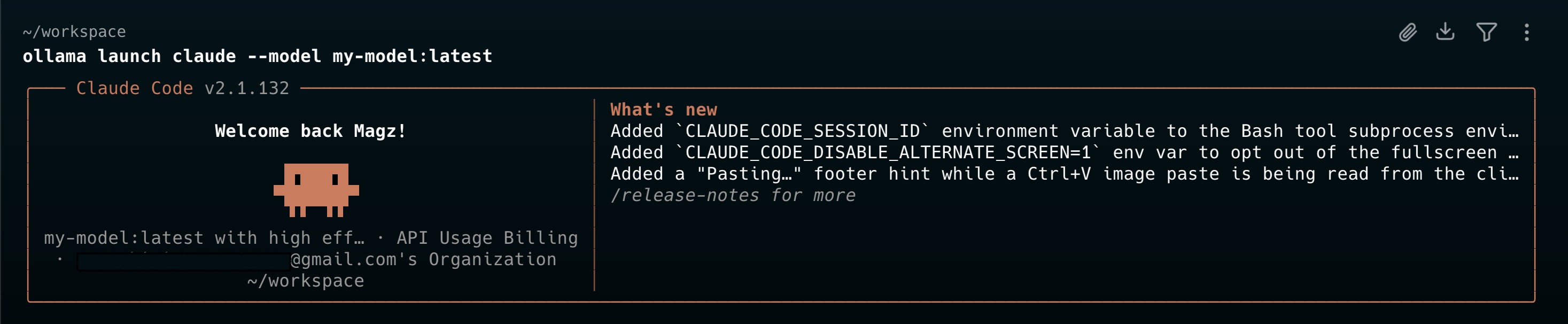
Note: you may have to toggle the /effort to any value but max (I noticed an issue with the effort parameter when testing this on LMStudio)
Ask it a question to make sure everything works:
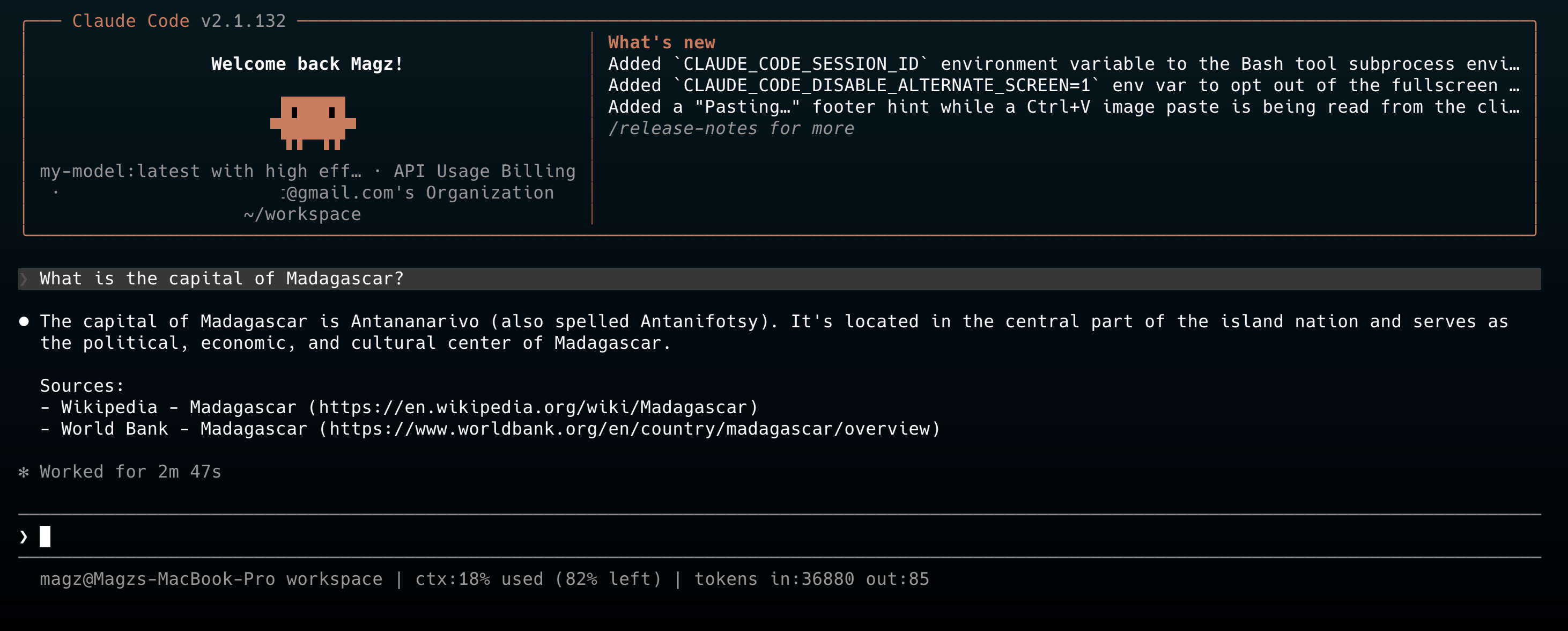
And there you go! Your locally run model ready to work for you for free 🎉